03
Manual Entry
Add classes by hand
Speed: Slowest
Web App
Free · Any portal
No portal access? Just want a clean tracker for one or two classes? Type your classes, category weights, and assignments straight into Lock In. Works for any school portal and gives you the most control over what's tracked.
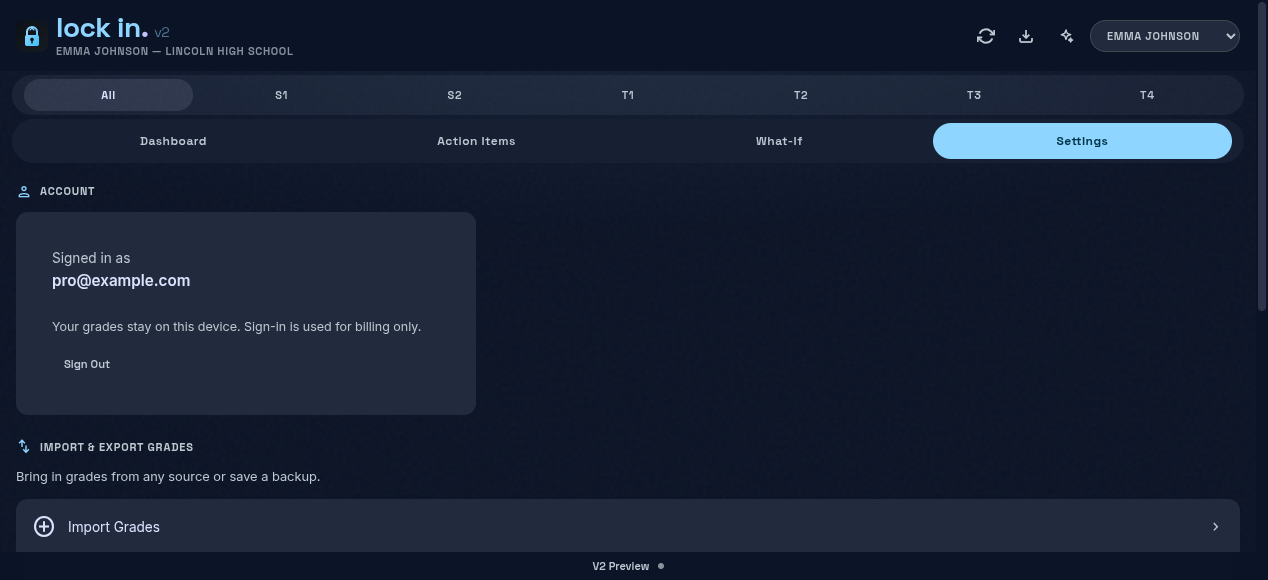
- Open Settings from the tab bar and click Add Class under Class Policies.
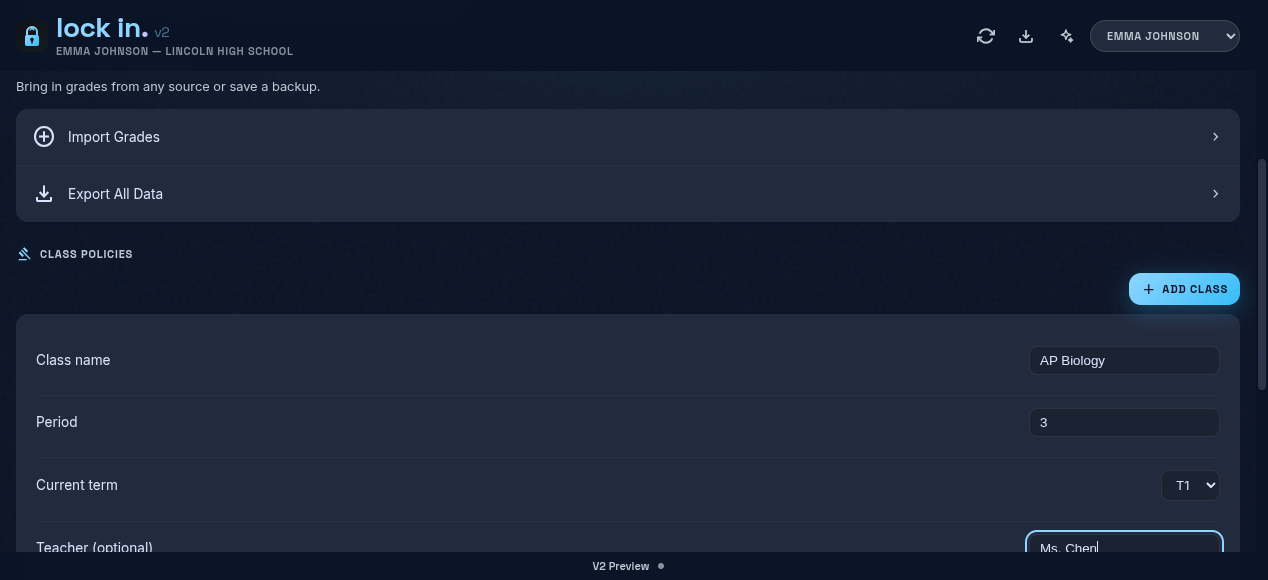
- Fill in the class name, period, current term, and (optionally) the teacher. Click Create Class.
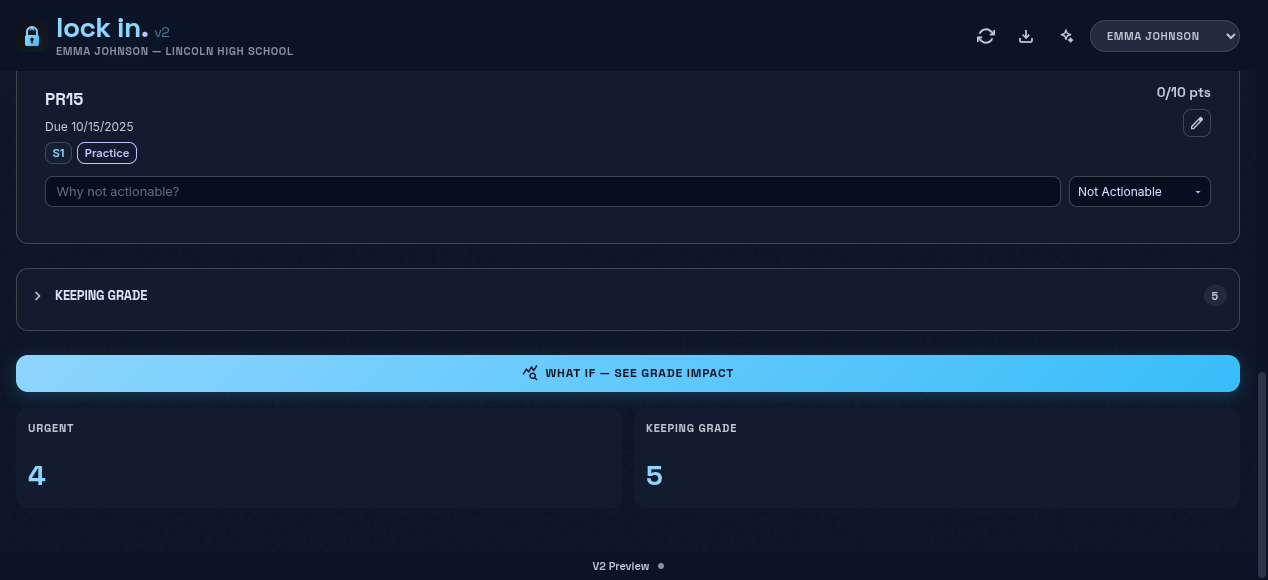
- Set category weights. After the class is created, scroll to the class settings panel and enter your teacher's weights (e.g. Tests 50%, Homework 30%, Participation 20%). Weights should sum to 100%. The Add Item button on Action Items stays disabled until weights are set.
- Switch to the Action Items tab and pick your class. Click Add Item to enter an assignment, test, or quiz.
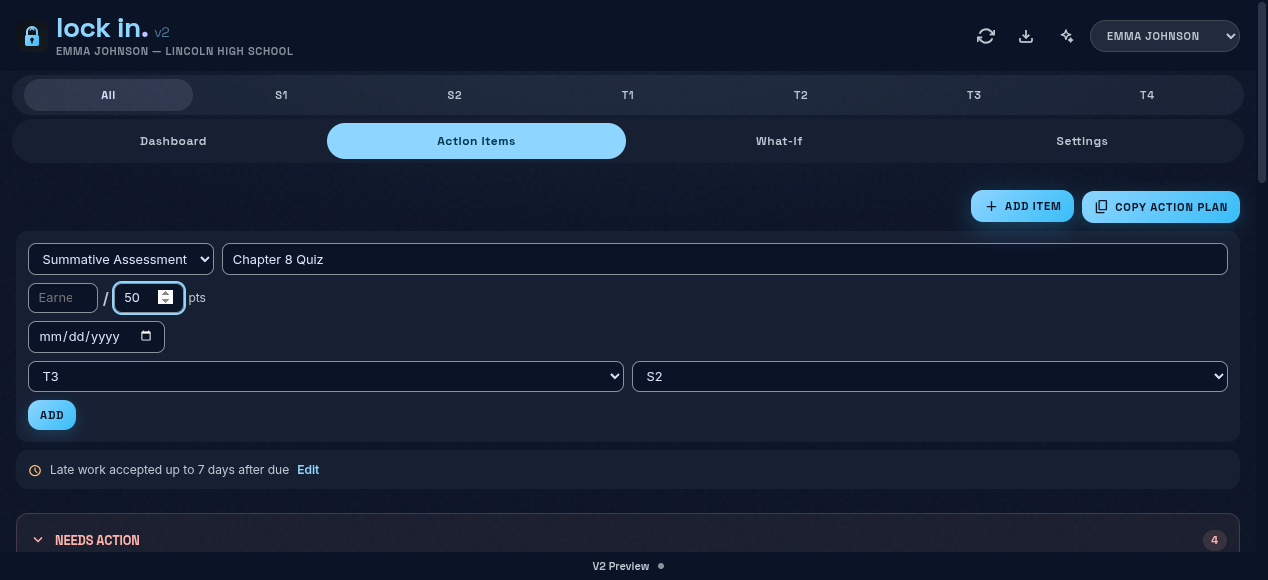
- Pick a category, name the item, enter points earned / possible, due date, and term. Click Add. Repeat for each assignment.
- Your dashboard updates live — the weighted class grade recomputes every time you add or edit an item.
Tip: Manual entry is the fallback when AI import or paste doesn't fit — or when your school uses a portal we don't support yet. Your data stays on your device.
02
Skyward Copy-Paste
Paste from Skyward
Speed: Fast
Web App
Free · No portal login
Copy text directly from Skyward's grade flyout and Calculations modal, then paste it in. The parser handles all the messy formatting automatically — no portal sign-in, no screenshots.
- Open Skyward Family Access and click on a class to open the grade flyout.
- Click the Calculations icon (small calculator button) to open the Calculations modal. Select all the text in the modal, copy it.
- Open the Import dialog and select the Paste Grades tab.
- Paste the Calculations text into the Category weights box (step 1). This is required for the dashboard to compute your live weighted grade.
- Go back to the grade flyout or full-page assignment view. Select all, copy.
- Paste that into the Assignments box (step 2).
- Click Import — both pastes are parsed together in one step.
Tip: You can paste just the Calculations modal text — without any assignments — to update category weights only. Useful if you already imported assignments via auto-sync and just need to add weights.
Walkthrough animation
01
Chrome Extension
Auto-sync from Skyward
Speed: Fastest
Free · Chrome
The Lock In Chrome extension auto-syncs your Skyward grades — no copy-paste, no screenshots — and keeps your dashboard up to date right in the browser side panel. Add to Chrome — free →
- Install Lock In from the Chrome Web Store.
- Open Skyward Family Access in Chrome (your district's Skyward URL — e.g.
skyward.iscorp.comor*.wa-k12.net). - The extension syncs automatically. Open the side panel to see your dashboard.
- For live weighted grade computation, click the Calculations icon (calculator button) next to any class — the extension captures your category weights automatically.
- Repeat for each class. Your dashboard shows a live grade ring for every class that has weights.
Tip: Sign in on the website first so the extension links to your account, then open Skyward and the side panel auto-syncs.